Website Search
Overview
Quarto includes support for full text search of websites and books. By default, Quarto will automatically index the contents of your site and make it searchable using a locally built index. You can also configure Quarto search to use a hosted Algolia index.
Search Appearance
Search is enabled by default for websites and books. If the site has a navbar the search UI will appear on the navbar, otherwise it will appear on the sidebar. You can control the location of search with the following options:
| Option | Description |
|---|---|
location |
navbar or sidebar (defaults to navbar if one is present on the page). |
type |
overlay or textbox (overlay provides a button that pops up a search UI, textbox does search inline). |
For example:
website:
  search:
    location: navbar
    type: overlay
Note that the above example reflects the default behavior so need not be explicitly specified. Note also that search is enabled by default for websites (you can disable it with search: false).
The overlay option displays the search UI as follows:
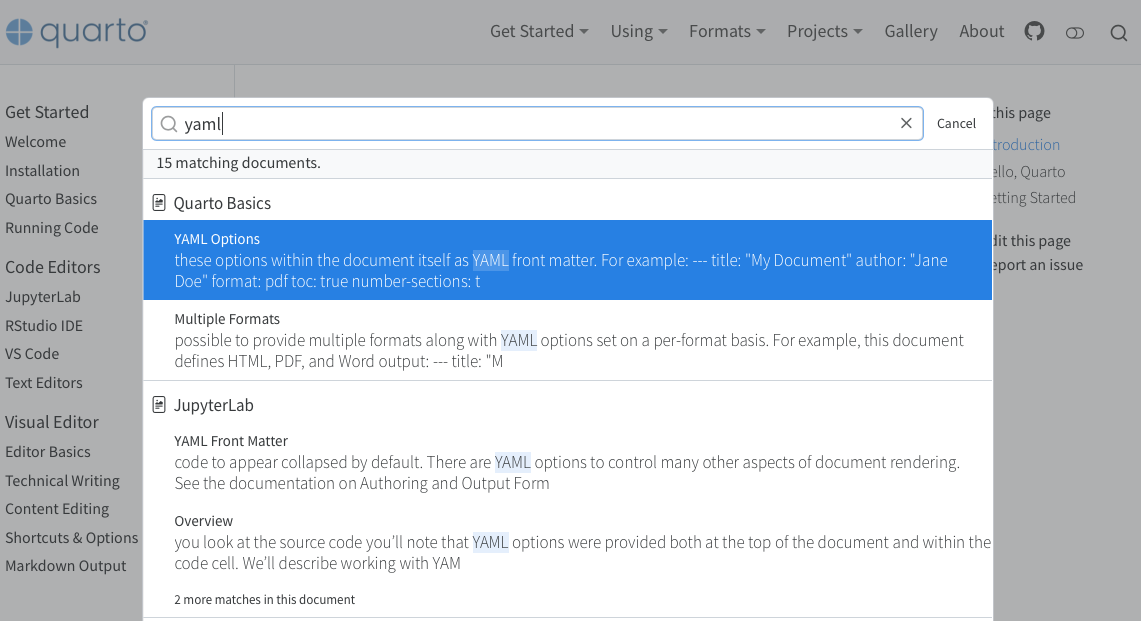
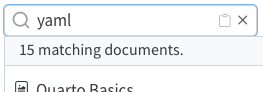
The textbox option displays search like this:
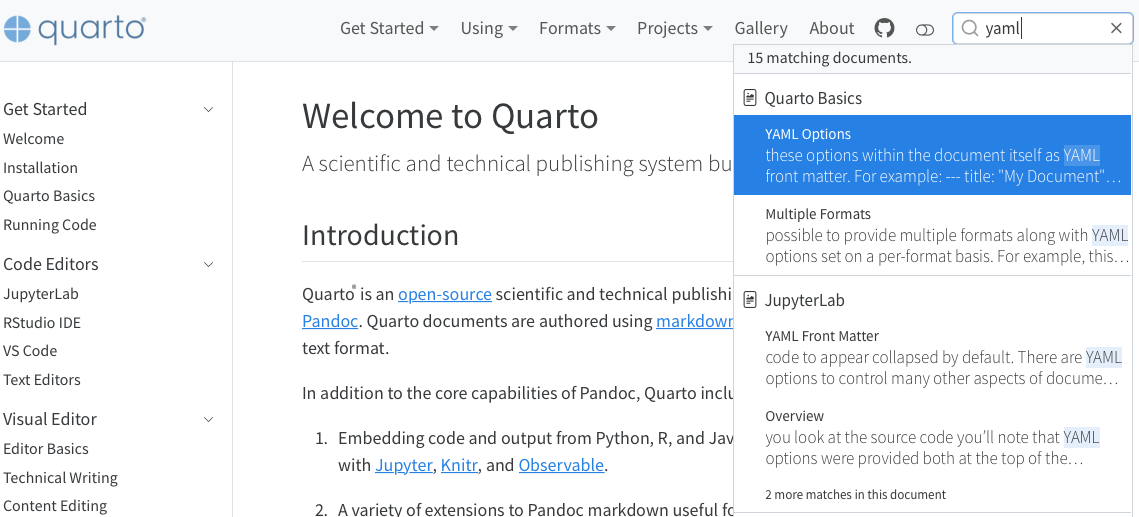
When the search is displayed as a textbox, by default, there is no placeholder text. You can specify placeholder text using the search-text-placeholder key of the language option (note that this is at the top-level, not inside the website option):
language:
  search-text-placeholder: Search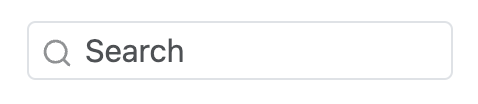
Keyboard Shortcut
In addition to clicking on the search UI, users can activate search using the keyboard shortcuts ss, ff or //. You can override these shortcuts by specifying the keyboard-shortcut option. In this example, search will be activated with ?? or HH:
website:
  search:
    keyboard-shortcut: ["?", "H"]
Customizing Results
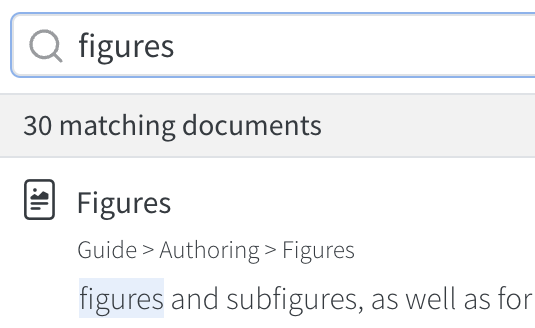
You can use the following search options to customize how search results are displayed:
| Option | Description |
|---|---|
limit |
The number of results to display in the search results. Defaults to 20. |
collapse-after |
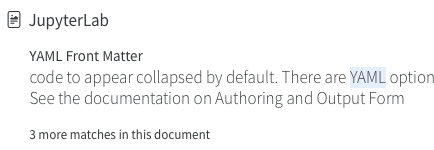
The number of sections matching a document to show before hiding additional sections behind a ‘more matches’ link. Defaults to 2.
|
copy-button |
If true, the search textbox will include a small icon that when clicked will copy a url to the search results to the clipboard (this is useful if users would like to share a particular search with results). Defaults to false.
|
show-item-context |
Control whether page parents are displayed next to items in search results. Use
|
Search Result Highlighting
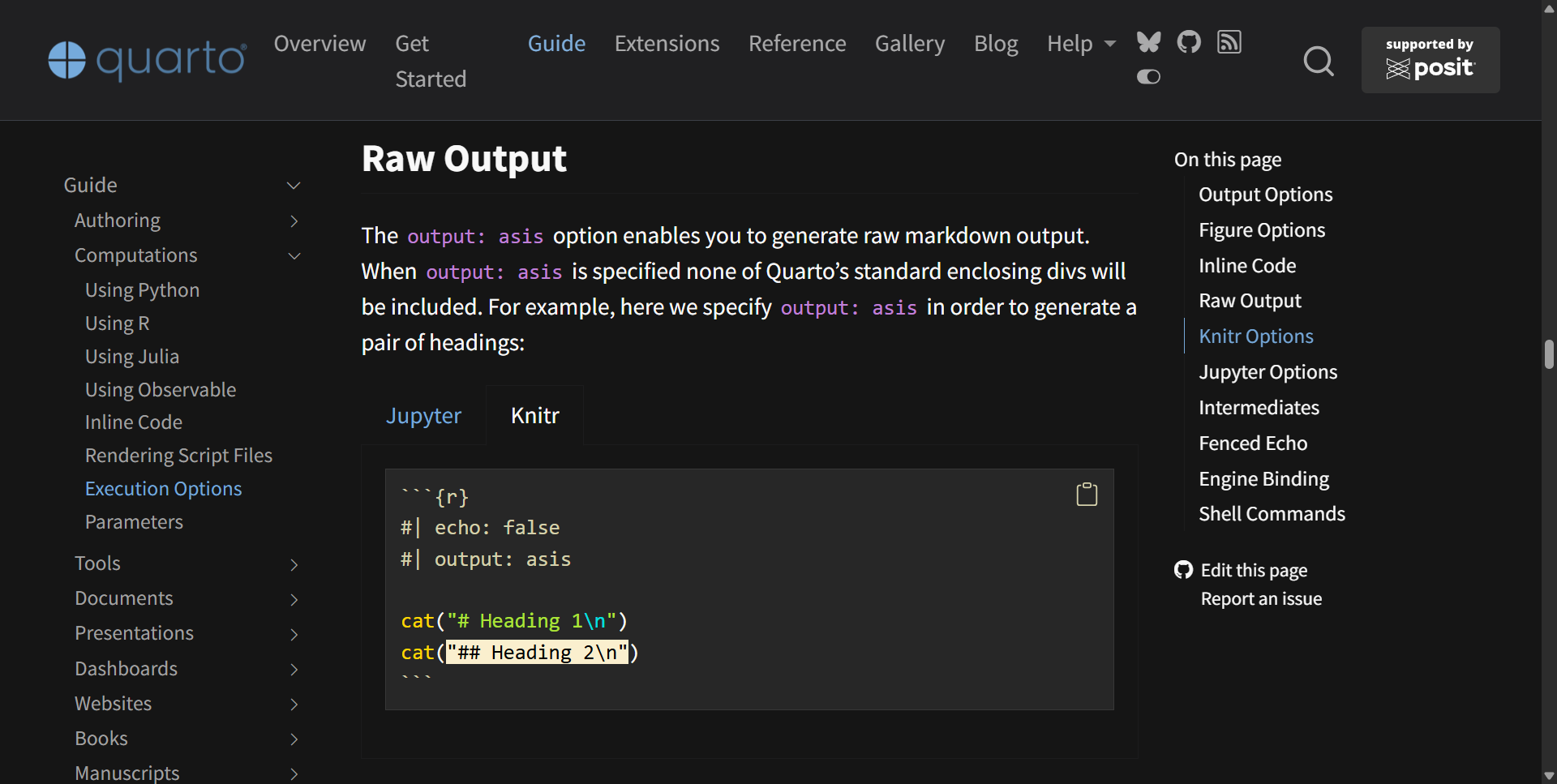
When you click a search result, Quarto navigates to the destination page and highlights the matching terms with <mark> elements. This works with both the built-in search and Algolia search.
The highlighting is driven by a ?q= URL parameter. You can manually add ?q=term to any page URL to highlight occurrences of that term — useful for sharing links that draw attention to specific content.
This feature is new in the upcoming Quarto 1.9 release. To use the feature now, you’ll need to download and install the Quarto pre-release.
Highlights remain visible until you navigate away from the page. When a match is found inside a tabset, the correct tab is automatically activated to reveal the highlighted content, including nested and grouped tabsets. Multi-word search terms are highlighted correctly even when they span across formatting boundaries such as bold, italic, code spans, or syntax-highlighted code blocks.
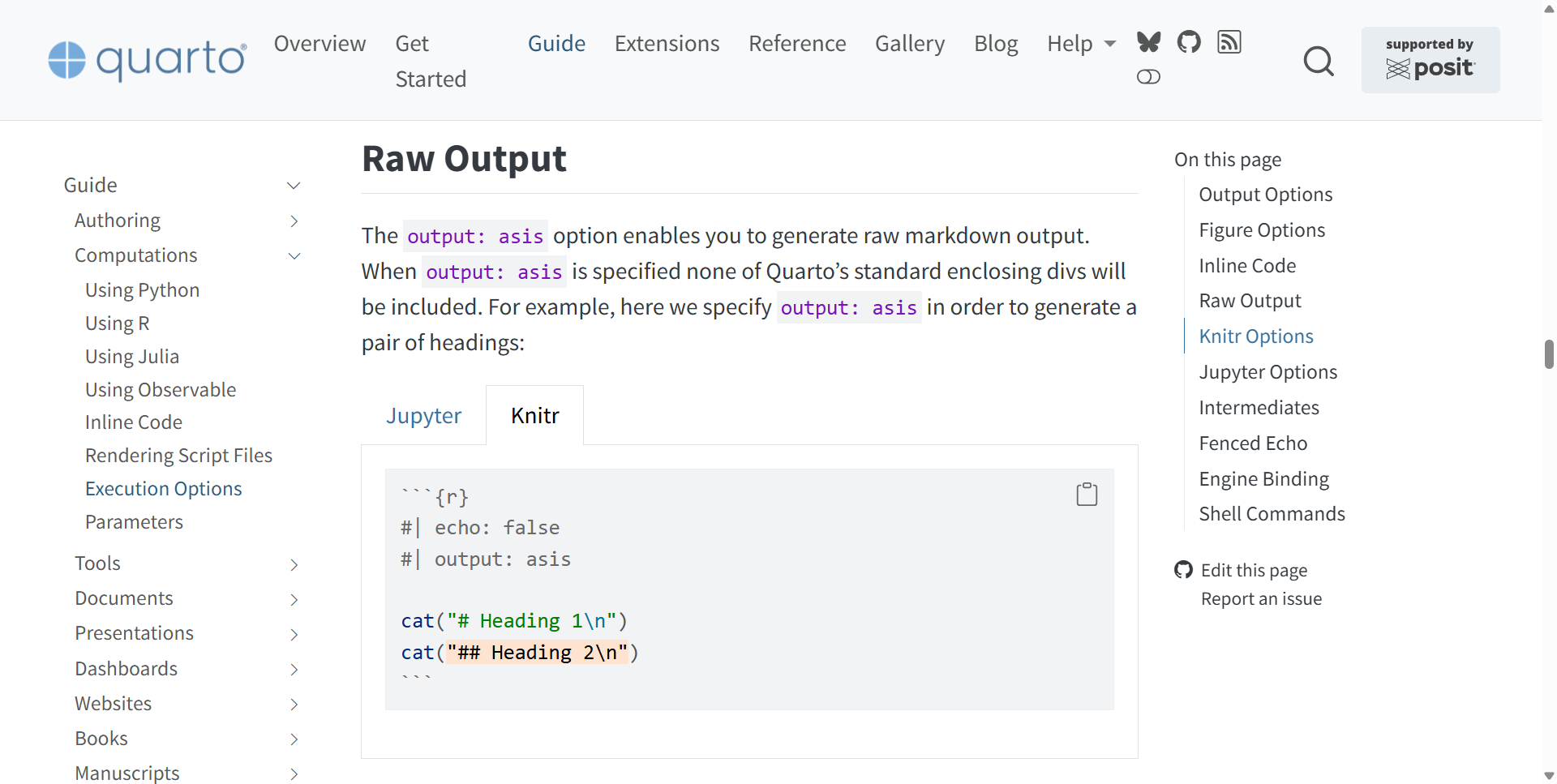
URLs that combine a search query with a section anchor (e.g., page.html?q=term#section) scroll to the specified section rather than jumping to the first match. For example, this link searches for "## Heading 2\n" on the Execution Options page with a #raw-output anchor — the Knitr tab is activated (instead of the default Jupyter tab), matches are highlighted inside the code block, and the page scrolls to the Raw Output section:
Using Algolia
In addition to the built-in search capability, Quarto websites can also be configured to use an external Algolia search index. When rendering a website, Quarto will produce a JSON file (search.json in the site output directory) which can be used to update an Algolia index. For more on creating indexes with Algolia, see Send and Update Your Data using Algolia.
Basic Configuration
In order for Quarto to connect to your Algolia index, you need to provide basic connection information in your Quarto project file. You can find this connection information for your Algolia index in the Dashboard in the API Keys section. The following basic connection information is required:
| Option | Description |
|---|---|
index-name |
The name of the index to use when performing a search. |
application-id |
The unique ID used by Algolia to identify your application. |
search-only-api-key |
The Search-Only API key to use to connect to Algolia.
Important
Be sure to use the Search Only API key, which provides read only access to your index and is safe to include in project files. Never use your Admin API key in a Quarto document or project. |
show-logo |
Displays a ‘search by Algolia’ logo in the footer of search results. |
For example:
website:
  search:
    algolia:
      index-name: <my-index-name>
      application-id: <my-application-id>
      search-only-api-key: <my-search-only-api-key>
Custom Index Schema
If you are simply using the search.json file generated by Quarto as your Algolia index, the above configuration information is all that is required to set up search using Algolia.
However, if you are generating an index in some other fashion, you may need to provide additional information to specify which fields Quarto should use when searching. You do this by including an index-fields key under algolia which specifies the names of specific fields in your index.
| Option | Description |
|---|---|
href |
The field to use to read the URL to this index entry. The user will be navigated to this URL when they select the matching search result. Note that Quarto groups results by URL (not including the anchor when grouping). This field is required (either as an existing field in your index or with a mapped field name). |
title |
The field to use to read the title of the index entry. This field is required (either as an existing field in your index or with a mapped field name). |
text |
The field to use to read the text of the index entry. This field is required (either as an existing field in your index or with a mapped field name). |
section |
The field to use to read the section of the index entry. Quarto groups results by URL and uses the section information (if present) to show matching subsections of the same document. This field is optional. |
Any or all of the above may be specified in your Quarto project file. For example:
website:
  search:
    algolia:
      index-name: <my-index-name>
      application-id: <my-application-id>
      search-only-api-key: <my-search-only-api-key>
      index-fields:
        href: url
        section: sec
        text: body
Algolia Insights
By default, Algolia provides a number of insights based upon the performance of your Algolia search. In addition, it may be helpful to understand more detailed tracking of the results that are viewed and clicked. You can enable click and conversion tracking using Algolia by setting the analytics-events to true:
website:
  search:
    algolia:
      index-name: <my-index-name>
      application-id: <my-application-id>
      search-only-api-key: <my-search-only-api-key>
      analytics-events: true
You can confirm that events are being properly sent to Algolia using the Event Debugger.
Advanced Configuration
In addition to the above configuration, you may also pass Algolia specific parameters when executing a search. For example, you may want to limit results to a particular facet or set of tags. To specify parameters, add the params key to your algolia yaml and provide params. For information about available parameters, see Algolia’s Search API Parameters.
For example:
website:
  search:
    algolia:
      index-name: <my-index-name>
      application-id: <my-application-id>
      search-only-api-key: <my-search-only-api-key>
      index-fields:
        href: url
        section: sec
        text: body
      params:
        tagFilters: ['tag1','tag2']
Disabling/Forcing Search
You can disable search for an individual document by adding search: false to the document metadata. For example:
---
title: "My Document"
search: false
---
If you’d like to disable search support for an entire website, you can do so by including the following in your _quarto.yml file:
website:
  search: false
Forcing the inclusion of individual elements
If you need elements from the document to be included in the search that otherwise wouldn’t, add the quarto-include-in-search-index class to the element. To include only a portion of a paragraph, etc, wrap the text in a span or a div and add the class to the element.